
Purpose
This knowledge base article provides guidance for clients when autofill from the Keeper browser extension is not working on a specific website. It explains how to submit a Snapshot so the issue can be reviewed and addressed by the Keeper engineering team.
When to Use This Article
Use this procedure when:
Autofill does not populate fields on a specific website
The Keeper browser extension is installed and logged in
Autofill works on other sites but fails on one particular page
Overview
Some websites use custom login forms or scripts that prevent autofill from functioning correctly. In these cases, submitting a Snapshot allows the Keeper engineering team to review the page structure and improve compatibility.
Important: You will communicate directly with the Keeper Engineering Team. Martarna has no visibility and not involved with the discussions with the Snapshot tool.
Procedure: Reporting an Autofill Issue
Step 1: Report an Autofill Issue from the Keeper Extension
Open the website where autofill is not working.
Click the Keeper browser extension icon.
Open the main menu and select Report an Autofill Issue.
This action launches Keeper’s Snapshot workflow for reporting autofill issues.
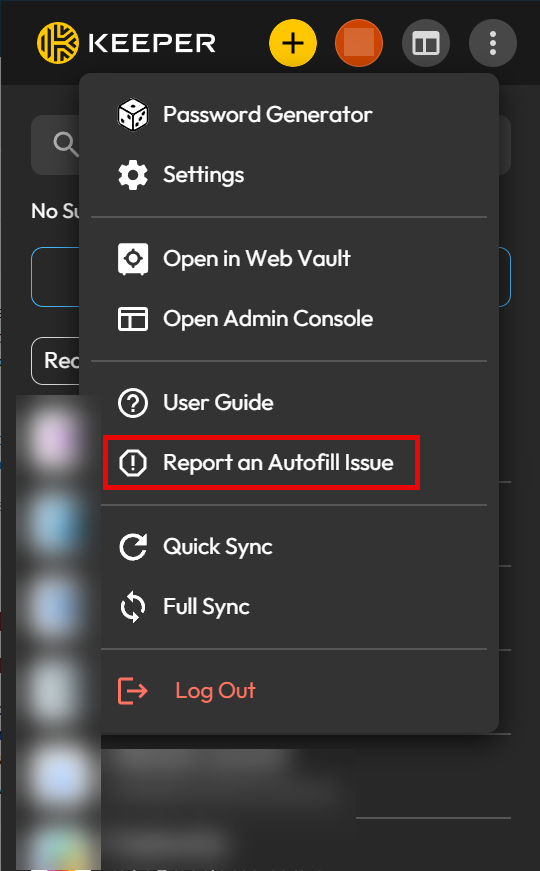
Step 2: Capture the Snapshot
Once Report an Autofill Issue is selected, follow the on-screen instructions to capture the browser screen showing the login page where autofill is not populating correctly.
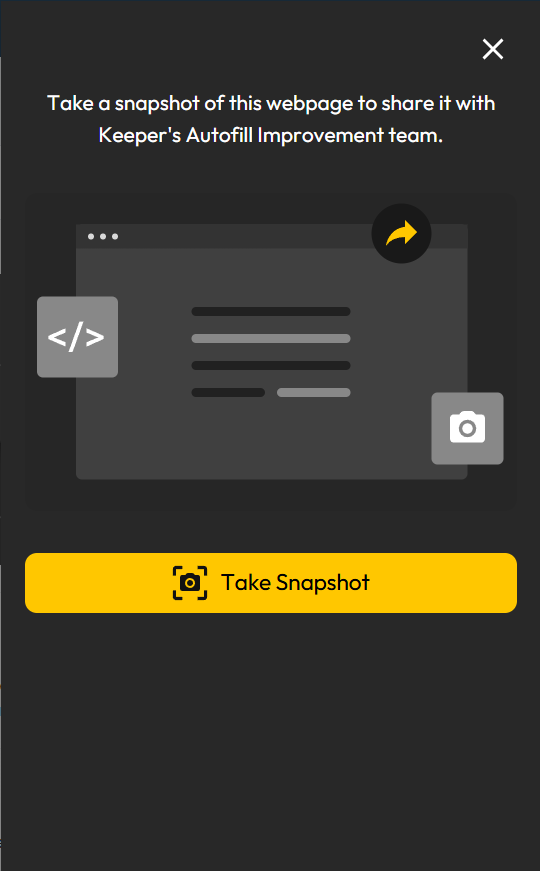
Step 3: Preview the Snapshot
After selecting Take Snapshot, follow the on-screen instructions.
Capture the browser screen showing the login page where autofill fails.
Step 4: Share the Snapshot
Select Preview to review the snapshot.
Review the following sections:
Page Info
JSON Code Snippet
Confirm that no confidential or sensitive information is visible.
The preview shows exactly what will be sent to the engineering team.
Step 4: Share the Snapshot
- Review the snapshot preview carefully.
- If confidential or sensitive information(such as personal data, account numbers, or internal-only content) is visible:
Click Retake to capture the page again after masking, hiding, or navigating away from sensitive information, or
Do not submit the snapshot and contact your IT administrator or support team for further guidance.
- If no sensitive information is visible, click Share Snapshot to securely send the snapshot to Keeper for analysis.
What Information Is Sent
Screenshot of the affected webpage
HTML page structure as displayed in the preview
What is NOT sent:
Usernames
Passwords
Stored credentials
Any hidden or unpreviewed data
Next Steps
After submission:
The snapshot is reviewed by the Keeper engineering team
Improvements may be made to enhance autofill compatibility for the site
No additional action is required unless further information is requested by Keeper
Reference Link
For additional details, please refer to the official article below: